Guide · Updated August 2026
Why your coding agent keeps missing the mobile UI bug
When a coding agent keeps missing a mobile UI bug, check the handoff before blaming the model. The miss may be the wrong element, a different reproduction state, a visible symptom whose cause is not on the screen, or a code change treated as proof. Those are the failures this page can separate. They are not a ranked rate of how often each one happens.
Those four misses need different confirmation. A longer paragraph on the same screenshot does not close all of them.
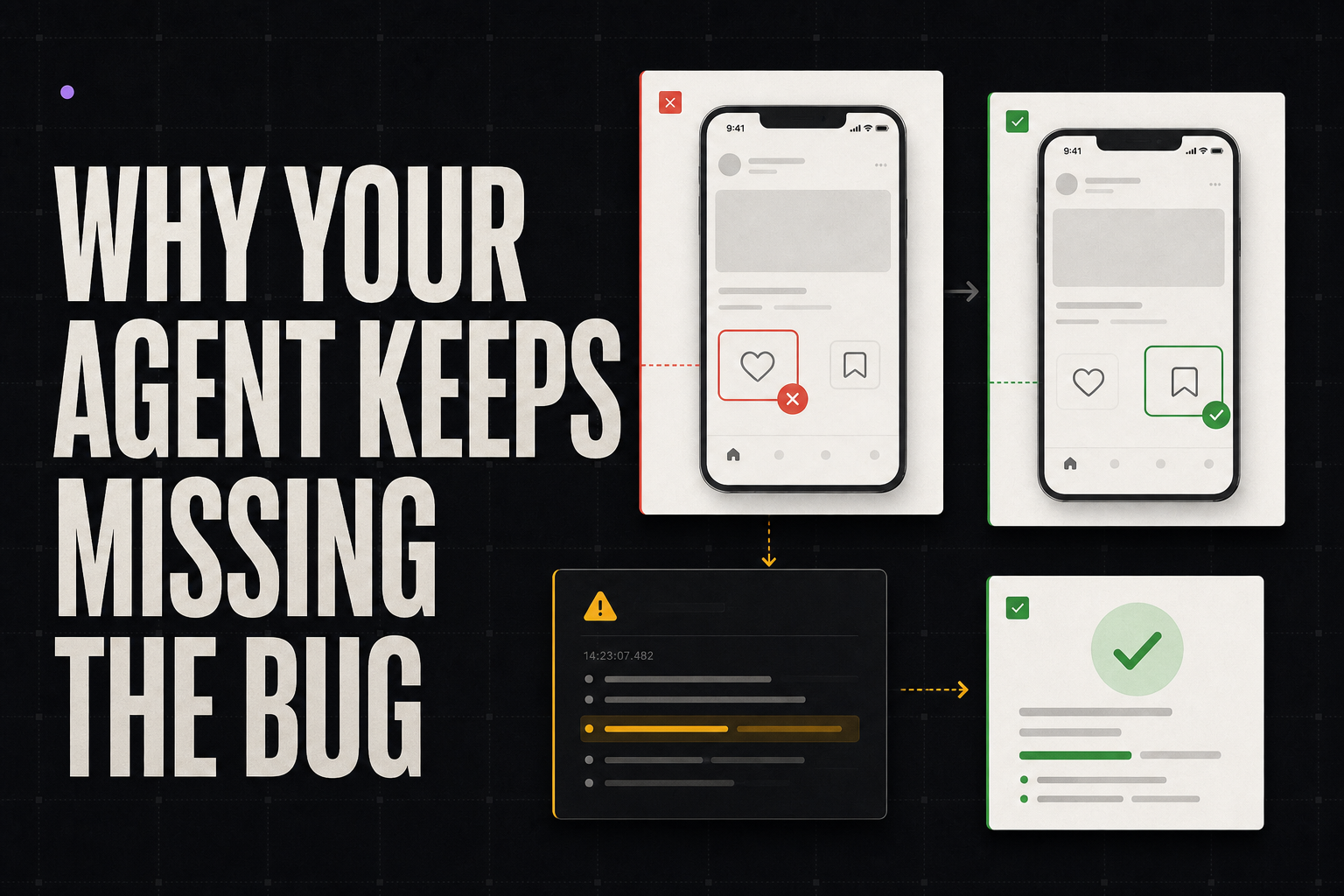
Evidence-limit note: The causes below come from first-party captures from the former Vibejar app and a small public source set. They are a diagnostic checklist, not a ranking of how often each miss happens.
Why an agent keeps missing a mobile UI bug
Start at the top of this table. If the agent cannot name the same target and reach the same state, later logs and diffs will be attached to the wrong problem.
| Cause | What the miss looks like | How to confirm it | Smallest useful fix |
|---|---|---|---|
| Wrong target | The agent changes a neighbouring button, gap, colour or component | Hide the annotation. Could a stranger point at one element? | Mark the exact target and a comparison reference |
| Wrong state | The agent cannot reproduce the bug, or verifies a different screen | Replay the path on the same build, account, data, device and permissions | Preserve the state-changing steps and the environment that created them |
| Visible symptom, runtime cause | The agent edits rendering while the failure comes from data, auth, navigation or a request | If the UI code were correct, could the same screenshot still appear? | Join the capture timestamp to logs, requests, Sentry and events before changing UI |
| Unverified implementation | The code changes and tests pass, but nobody checks the original mobile state | Compare the returned proof with the original route, build, device and visible result | Require the same path and a visible result, not a diff alone |
This page is for a builder who already owns the app and the agent, and who has already sent the bug once. It is not a guide to enterprise QA, agency website feedback or choosing a coding agent.
One empty screen, four different misses
The first-party case that carries all four boundaries is an empty Connect your agent screen. The expected result is pairing instructions. The capture shows a blank content area on the right route.
The first send is usually a screenshot and “this screen is empty, fix it.” That packet can fail four times, for four different reasons:
- The agent restyles the empty-state component next to the pairing panel.
- The agent opens a logged-out simulator build and cannot reproduce the screen.
- The agent rewrites the empty-state copy while the pairing request returned nothing.
- The agent returns a passing typecheck and a web preview, and marks the work done.
Two other first-party captures confirm the same tests when the miss is narrower.
Cause 1: the report does not identify one target
On the empty pairing screen, “this screen is empty” can mean the whole route, the header, the pairing panel, a loading region or a generic empty-state illustration. The agent will pick a plausible component. Plausible is not the same as identified.
A smaller first-party case makes the same test obvious. Two adjacent buttons sat on one screen. “The button padding looks wrong” fitted either control. A circle around the white Contact John button, plus one sentence about visual balance with the button beside it, removed the guess.
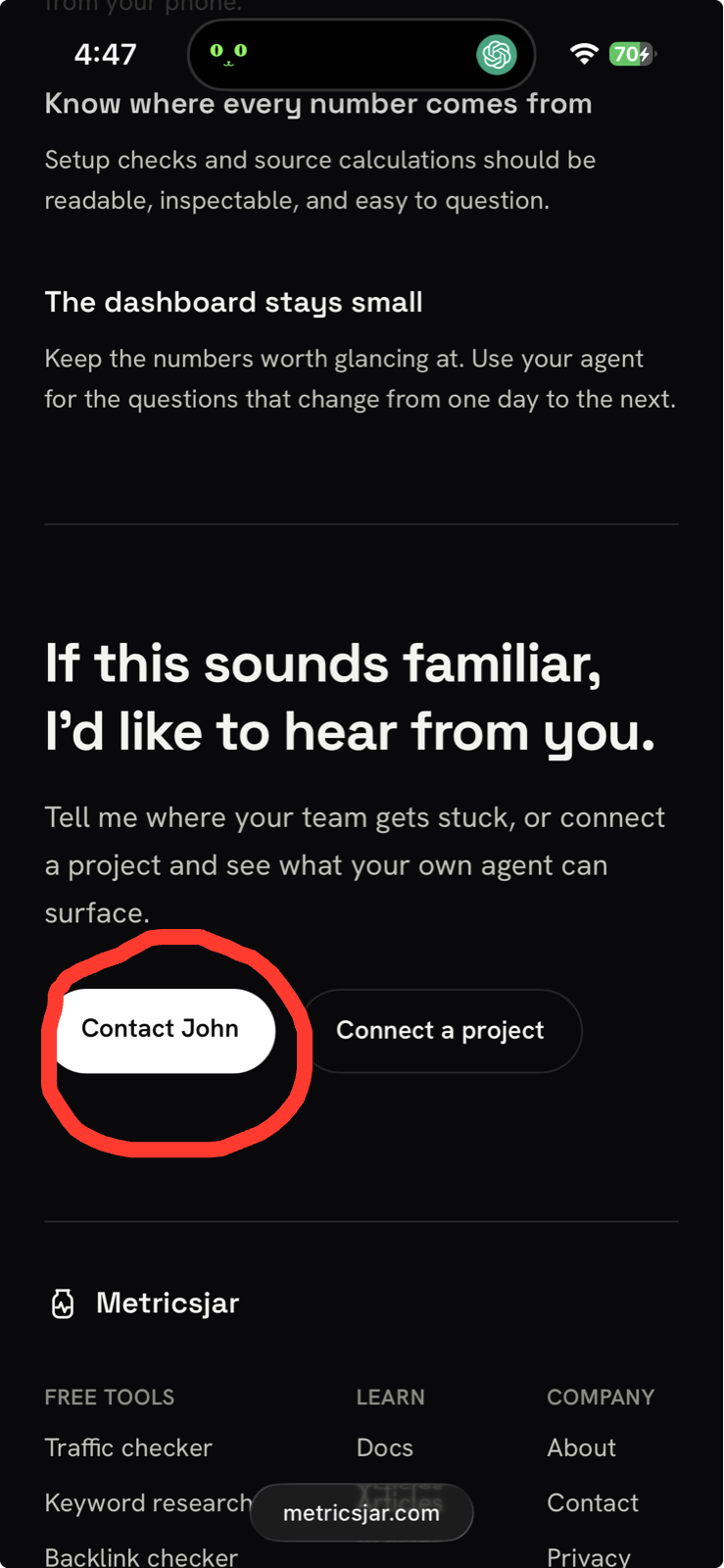
Confirm this cause by hiding the mark and asking whether a person who has not seen the app could point at one element. If two elements still fit, the target is not specified.
Fix the handoff before changing agents or models:
- keep the full screen so the route and neighbours stay visible;
- circle the smallest region that contains the problem;
- mark a reference element when the problem is comparative;
- state the intended result without prescribing unverified pixels.
Cause 2: the agent reaches a different state
A mobile screen is the result of a path, not only a component. Build type, authentication, selected data, permissions, orientation, keyboard, network and remote flags can all change what appears.
On the empty pairing screen, a logged-out simulator, a different account or a development build can produce a different blank. The agent then “fixes” an empty state that was never the reported one. A React Native thread on development versus production behaviour is useful only as a reminder to record which build is under test.
The non-scrolling bottom-sheet capture shows the other side of this boundary. The full screen preserved the constrained sheet and the missing interaction. A tight crop could have sent the agent to a generic list that never reproduced the failure.
Confirm a state mismatch by recording:
- build and release;
- device and orientation;
- account or data state;
- the taps that changed state;
- whether the agent reproduced the same visible result before editing.
| Mobile state | Visible symptom it can change | Evidence to preserve | Useful inspection surface |
|---|---|---|---|
| Device width and safe area | Cropping, overlap and misplaced controls | Device, viewport and full screenshot | Simulator or device inspector |
| Keyboard and modal state | Covered fields, jumps and blocked actions | Screen state and interaction path | Replay or live-device control |
| Account and loaded data | Empty, stale or differently shaped screens | Safe account or data clue and timestamp | Requests, events and app state |
| Permission state | Missing prompts or blocked features | Granted, denied or not-requested | Device settings and logs |
| Release or build | A failure that exists in only one build | Build, release and recent change | Distribution and repository history |
Write only the steps that change the result. Skip every tap from launch when the route and account already identify the screen.
Cause 3: the screenshot proves the symptom, not the cause
The empty Connect your agent screen proves that the expected content did not render. It does not say whether the route failed, authentication expired, a request returned no data, rendering threw or the user arrived through an unexpected path.
Confirm this boundary by asking: if the UI code were correct, could the same screenshot still appear? If yes, inspect runtime evidence before changing the component.
Use the capture timestamp as the join key:
| Evidence | Confirmation question | Possible next action |
|---|---|---|
| Console logs | Did rendering or a state transition throw? | Trace the stack and reproduce the same branch |
| Network | Was the request sent, and what returned? | Fix auth, API, timeout or response handling |
| Sentry | Is there a matching event, release and device? | Fix the traced failure and verify that release path |
| Product events | Which route and action preceded the empty state? | Reproduce the actual path instead of the assumed one |
| Repository history | Did the implicated path change recently? | Review the smallest likely regression window |
Sentry’s Issues product groups runtime events so you can match a capture time to a release and device. That helps when an exception already exists. It will not invent a visual target the agent never received. If the project does not keep this evidence, say so. The correct output can be a ranked reproduction plan rather than a guessed empty-state redesign.
Cause 4: implementation is mistaken for proof
An agent can change the plausible component, pass a type check and still leave the original pairing screen empty. That is especially weak when it verifies a web preview for a device-only problem.
A public example of this boundary is an agent that wrote a lesson-completion screen with clean code, a valid build and passing tests, then never saw the rendered state because reaching it required a gesture path the agent did not run. The bottleneck named there is verification, not generation. Read the original post.
Confirm this cause by comparing the proof with the original report:
- same route;
- same build type;
- same account and data state;
- same device class and orientation;
- same interaction;
- final visible state attached.
A pull request explains what changed. It does not replace the visible result. A public write-up of a real agent fix treats before and after plus the diff as the receipt.
When several causes apply at once
The empty pairing screen can contain all four failures at once: an unmarked screenshot, an unrecorded account, a failed request and a code-only verification. Work in evidence order and stop at the first broken boundary.
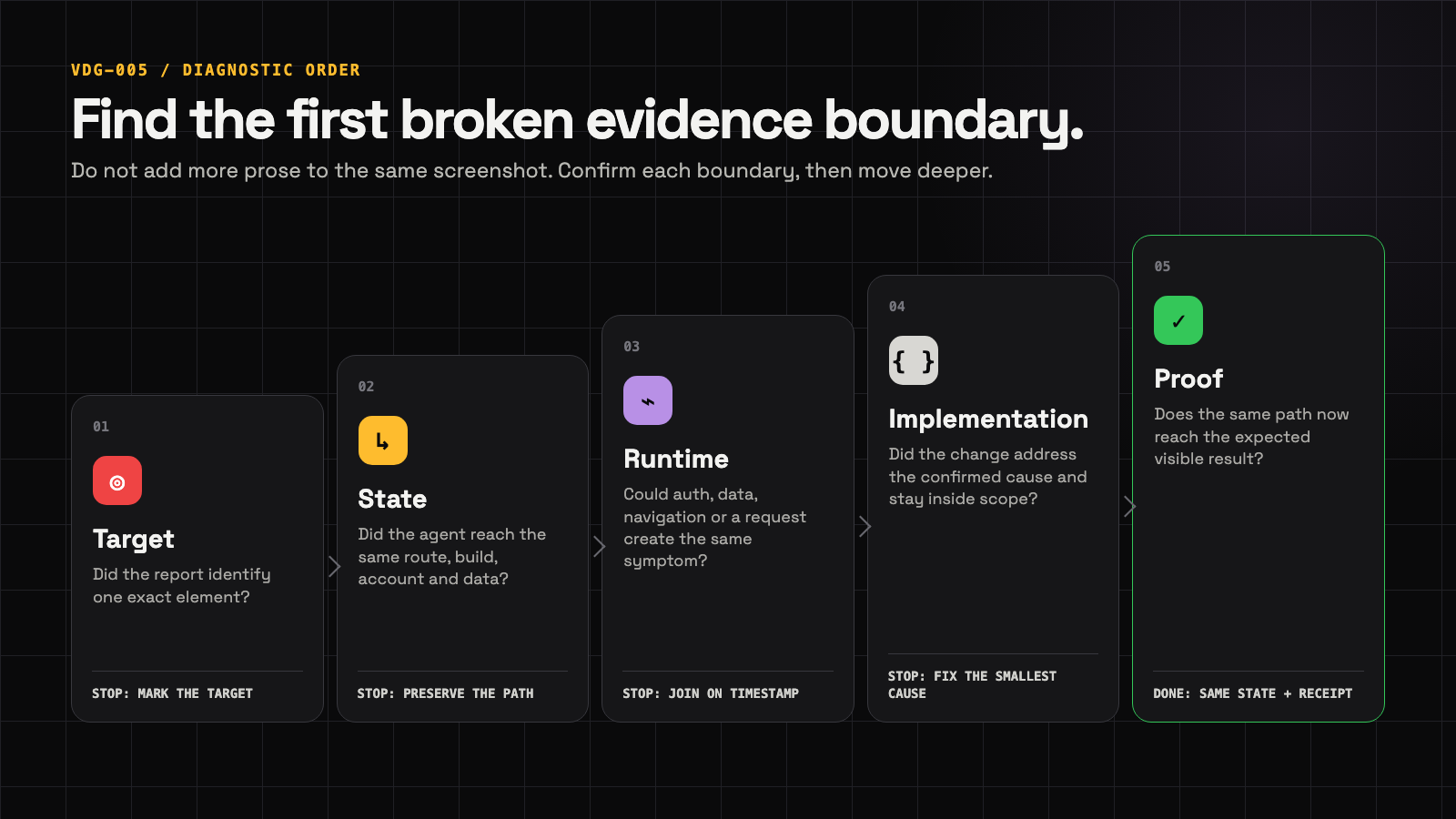
The same diagnostic order is also available as a 10-second motion sequence.
- Identify the exact report and target.
- Reproduce the same state.
- Inspect runtime evidence.
- Make the smallest responsible change.
- Verify the same path.
- Assess neighbouring regression risk.
- Deploy only inside the approved boundary.
Do not add more prose to the same screenshot. Confirm, then move deeper.
What to change so the next report does not fail the same way
Prevention is the same checklist, applied at capture time rather than after the wrong pull request: mark one target, write the expected visible result, record only the state that can remove the failure, attach a timestamp when the blank screen could have several runtime causes, and require proof from the original path.
Pasting more screenshots is a weak substitute. One public note on screenshot-heavy agent sessions describes image payloads staying expensive across later turns.
Choose the tool that closes the missing boundary
Use a tool only when the missing boundary is durable and a better report will not close it. Until then, fix the handoff.
Freshness note: Named tools below use vendor pages checked on 14 August 2026. Device support and commercial plans change. If a figure cannot be verified on the current primary page, it is omitted.
| Missing boundary | Smallest close | Poor fit for that job |
|---|---|---|
| Target is ambiguous and the state is already open | Mark the screenshot and paste it into the agent you already pay for | Buying a reporting platform to circle one button |
| The agent must drive a live simulator or phone, read UI structure, pull logs or repeat tests | MobAI (Free: US$0, one device at a time; Pro: US$9.99/month or US$99/year) or SimView (live iOS Simulator and Android preview, inspect, annotate and validate; no public price listed) | A queued capture when you need an active session now |
| A team needs rich web console, network and replay evidence | Jam (Free: US$0 with 30 Jams per month; Team: US$14 per creator per month, billed yearly) | A solo builder fixing their own native screen |
| A production exception already exists | Sentry or another observability tool | A human-observed visual bug with no matching event |
| A person noticed the bug in their own app, away from the desk, and wants the paired agent to return proof later | Any queue that preserves the marked capture and requires same-path proof | Live device automation, agency website feedback or crash-only monitoring |
The former Vibejar app was one implementation of the last row and is now retired. A queue is still the wrong close for live exploration, team web triage, or passive errors. Direct paste remains the right first move when the state is open and the target can be marked.
Keep automation inside a proof boundary
One public report describes a screenshot-triggered autonomous run that deleted unrelated projects. It is a safety objection, not an estimate of how often that happens.
Automatic deployment belongs only after:
- the original state was reproduced;
- the cause was confirmed;
- the smallest change was made;
- the original path passed end to end;
- nearby high-risk paths were checked;
- the deployment authority already covered the change.
Otherwise stop at a pull request that states the missing evidence or the review still required. An overnight pickup can implement that queue. The method is durable evidence, an explicit deploy boundary and returned proof.
Frequently asked questions
What should I check when my agent keeps missing a mobile UI bug?
Check whether the report identifies one target, reproduces the same state, connects the symptom to runtime evidence and requires proof from the original path. Start at the first check that fails.
Why does my coding agent fix the wrong UI element?
The report often describes a visual region in prose that fits several elements. Mark the exact target and the reference element before adding a longer description.
Why can the agent not reproduce a bug shown in a screenshot?
The screenshot may omit the build, account, data, permission or navigation state that created it. Preserve only the state variables that can change the result.
When should the agent inspect logs instead of the screenshot?
When the same visible symptom could come from data, authentication, navigation, a request or rendering failure. Use the capture timestamp to locate the matching runtime evidence.
Do mobile device-control tools solve this problem?
They close live inspection and automation when the device session is available. They do not replace a capture that happened outside that session, or the need for proof and deployment boundaries.
What counts as a verified fix?
The same user path reaches the expected visible result in the relevant state, and the implementation receipt states what changed, what was checked and whether it was deployed.
Start with the minimum useful visual handoff. When the missing boundary is a durable tool choice rather than a better report, compare the best AI bug-reporting approaches before buying anything.